
Your Guide to MyBrokerSure
Making simple changes to your insurance policy should be straightforward.
Here's how to access and use the MyBrokerSure online portal.
Traveller Details
Update names, titles, dates of birth, and add travellers to your policy.

Destination & Dates
Add or amend dates or destinations if there's been a change of plan.

Update Medical
Keep your medical declaration accurate - update medical questions or add conditions.

View Your Documents
Easily access your Policy Wording, Certificate, and IPID online.
Using the MyBrokerSure portal
- 1. What is MyBrokerSure?
- 2. Setting up MyBrokerSure
- a) Creating a password
- b) Resetting your password
- 3. Accessing your policy
- a) Locating your policy
- b) Viewing your policy documents
- 4) Amending your policy
- a) Change your dates
- b) Change your destination
- c) Change traveller information
- d) Change medical declaration(s)
- e) Upgrade your existing policy
- f) Change your activities and extensions
- 5. How to make a claim
- 6. Contact us
1. What is MyBrokerSure?
MyBrokerSure is a secure online portal where you can access and make changes to your travel insurance policy. You can login using the following link:
https://travelinsurance.brokersure.com/myaccount/.
The login page looks like this:
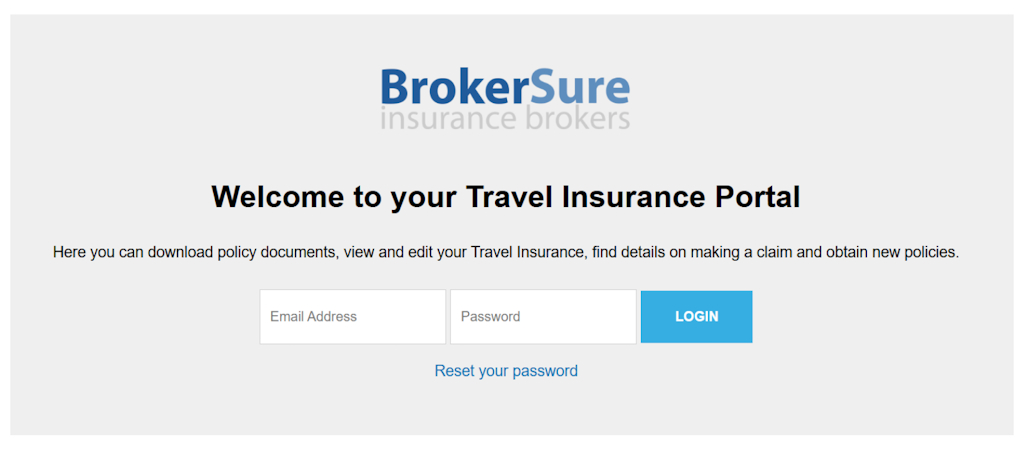
Once you have created a password and logged in, you'll be able to view and change your:
- Travel dates
- Destination/geographical area
- Traveller details
- Your contact details
- Additional activities/extensions
- Policy cover level
2. Setting up MyBrokerSure
a) Creating a password
Before logging in, you will need to create a password. To do this you can click on the link in your confirmation email, or you can click Reset your password on the login page.
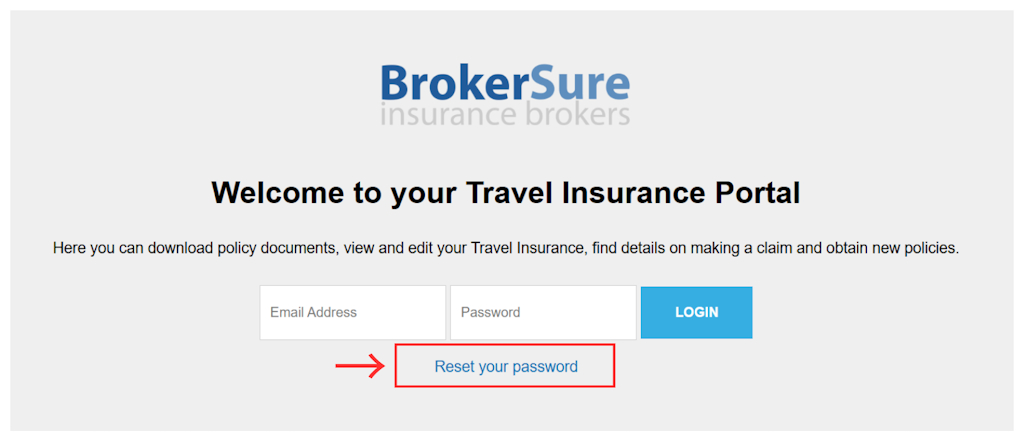
Once this is done, you can login using the email address associated with your travel insurance policy, and the password you have created.
b) Resetting your password
If you would need to reset your password, click here to do so: https://travelinsurance.brokersure.com/myaccount/amendpassword/.
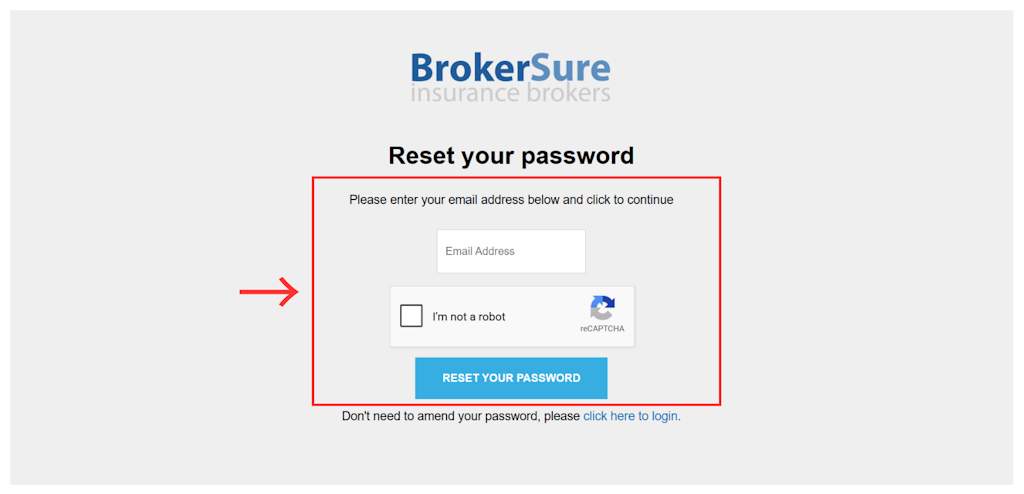
Otherwise, our customer contact team can email your travel insurance confirmation to you again - please call 0330 880 3600 to do so.
3. Accessing your policy
a) Locating your policy
It's easy to use MyBrokerSure to find your travel insurance policy. Once you have logged in, your homepage will look like this:
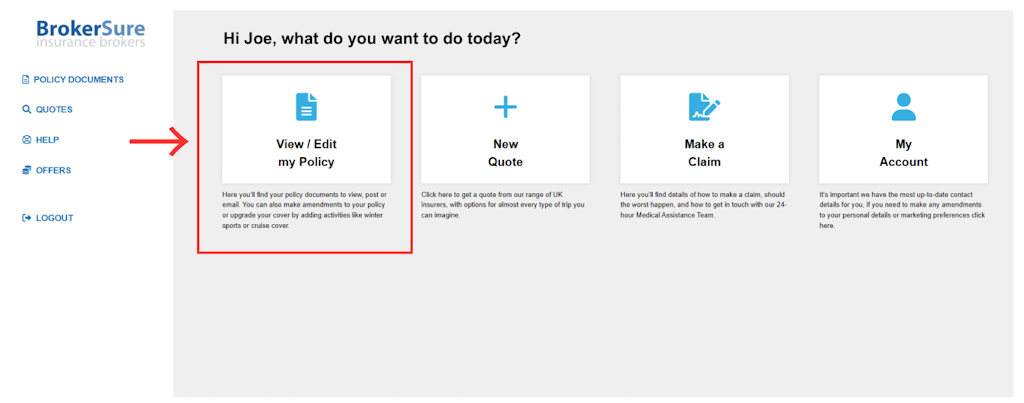
All you need to do is click on the first of the four big boxes, which is labelled View/Edit my Policy. Clicking on this option will take you to a list of all the policies you have had with us. The policy with the closest travel dates will be displayed first:
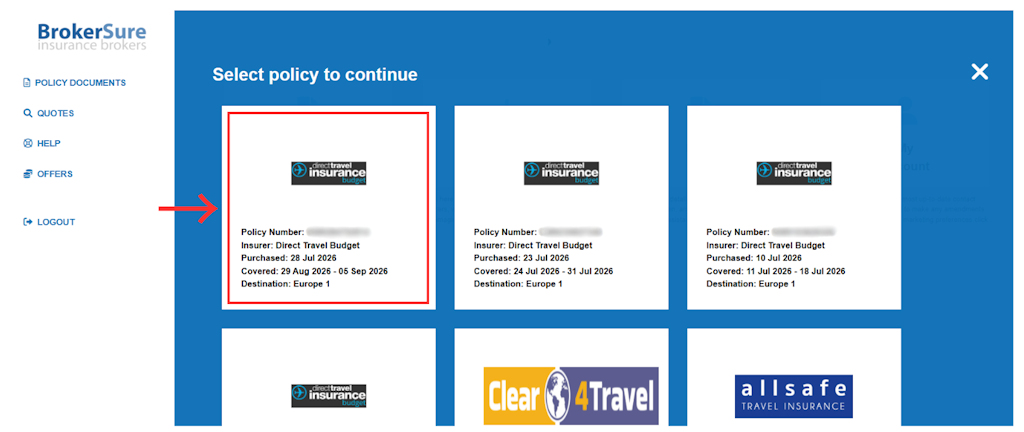
By clicking on any of these, you can see the full policy details.
b) Viewing your policy documents
Once you have located your policy under View/Edit my Policy, click on it to easily access your policy documents. You will be presented with the following:
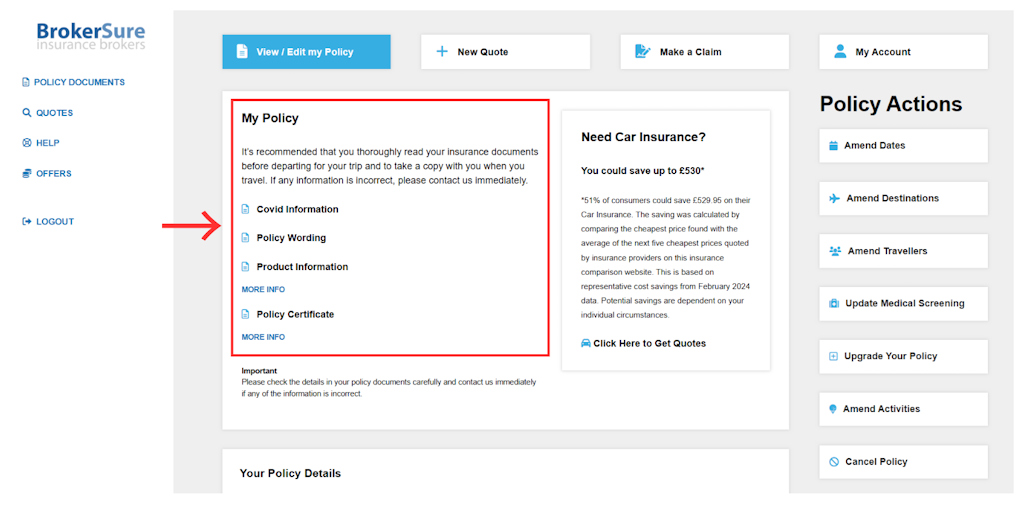
From here, you can access individual policy documents by clicking an option from the list on the left:
- Product Information
Also called an IPID, this document contains generic information regarding the travel insurance brand. This document is the same regardless of your level of cover or policy amendments. - Policy Wording
This is the booklet of terms and conditions which tells you exactly what you're covered for. This will outline what is covered under the level of cover you have chosen. - Policy Certificate
This is the personalised document detailing your specific insurance cover, travel dates, date of purchase, personal details, additional sports or extensions, and medical declaration(s).
4. Amending your policy
Making amendments to your policy is easy. Simply log in to MyBrokerSure and select the policy you need to change. Once you’ve done this, a selection of Policy Actions will show up on the right side of your screen.
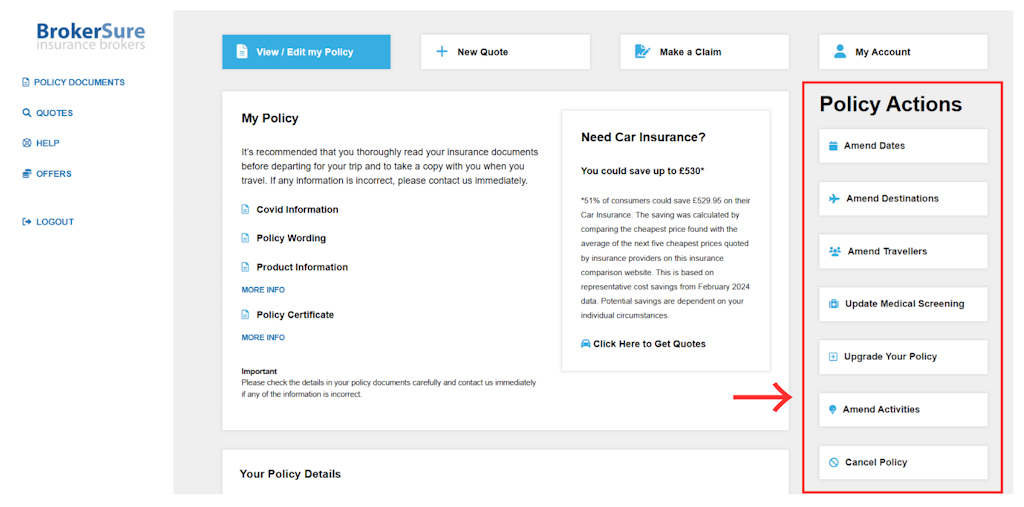
The Policy Actions list is how you can:
- Change your dates
- Change your destination
- Change traveller information
- Change medical declaration(s)
- Upgrade your existing policy to a higher level
- Change the activities and extensions on your policy
If you would prefer, you can also contact our customer service team to speak to somebody directly. This can be done by calling 0330 880 3600, or you can email enquiries@brokersure.com.
a) Change your dates
To amend your dates, just click Amend Dates from the Policy Actions list. Your current trip dates will show up and you can change them from here. Click Amend Travel Dates to confirm.
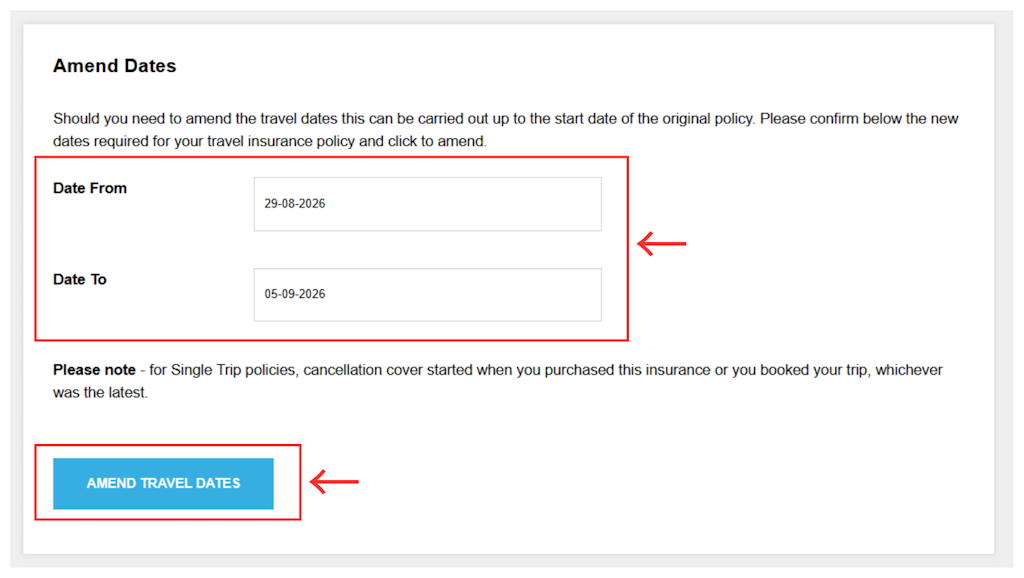
If there is no additional premium to pay, the system will simply confirm the change. If further payment is required, you will be directed to a payment page for the additional policy premium.
We will not charge you an administration fee to amend your policy.
Once this is done, you can login using the email address associated with your travel insurance policy, and the password you have created.
b) Change your destination
Should you need to change your destination/geographic region, select Amend Destinations from the Policy Actions list.
You will be directed to a page where you can change or add destinations/regions. The system will automatically work out whether you have a Single Trip or an Annual Multi-Trip policy. Below is a Single Trip example:
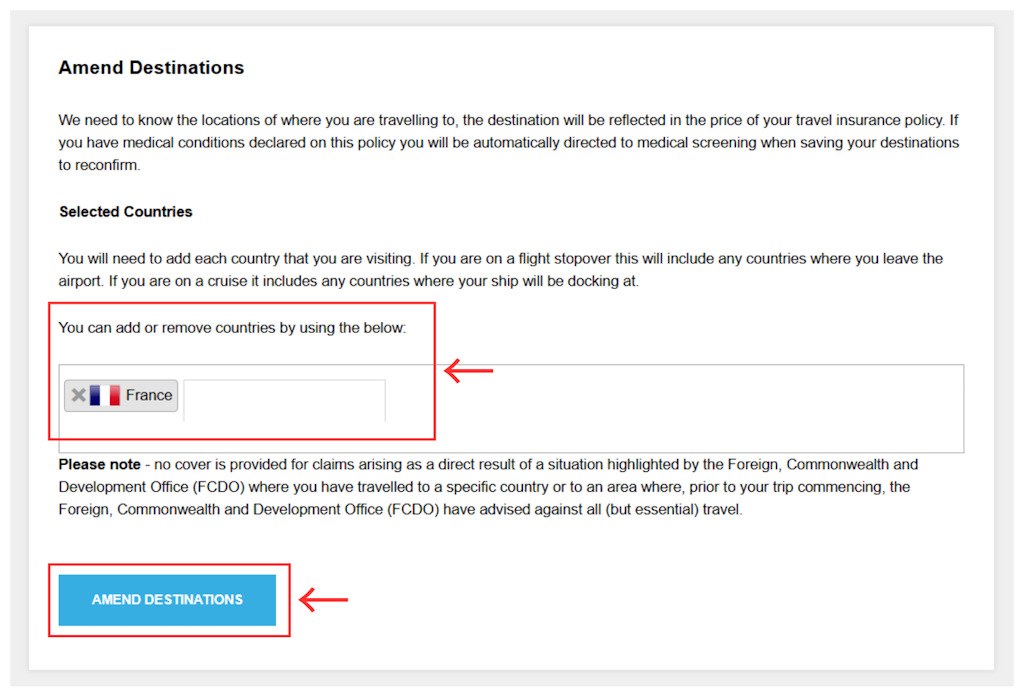
Once you have amended the countries/region as required, click Amend Destinations. Now one of three things will happen:
- Confirmation - if there are no further actions, the change will be confirmed, and the process is complete.
- Medical screening - you might need to re-confirm the medical declaration(s). This is because your new destination(s) likely provide healthcare at a more expensive cost than those previously selected.
- Additional premium - if further payment is required, you will be directed to a payment page for the additional policy premium. We will not charge you an administration fee to amend your policy.
c) Change traveller information
You can also use MyBrokerSure to edit existing traveller information, or add travellers. Use Amend Travellers on the Policy Actions list.
You'll be shown a page with the current travellers, alongside their declared medical conditions. From here you can change their names, dates of birth, and click Add Another Traveller to list a new person.
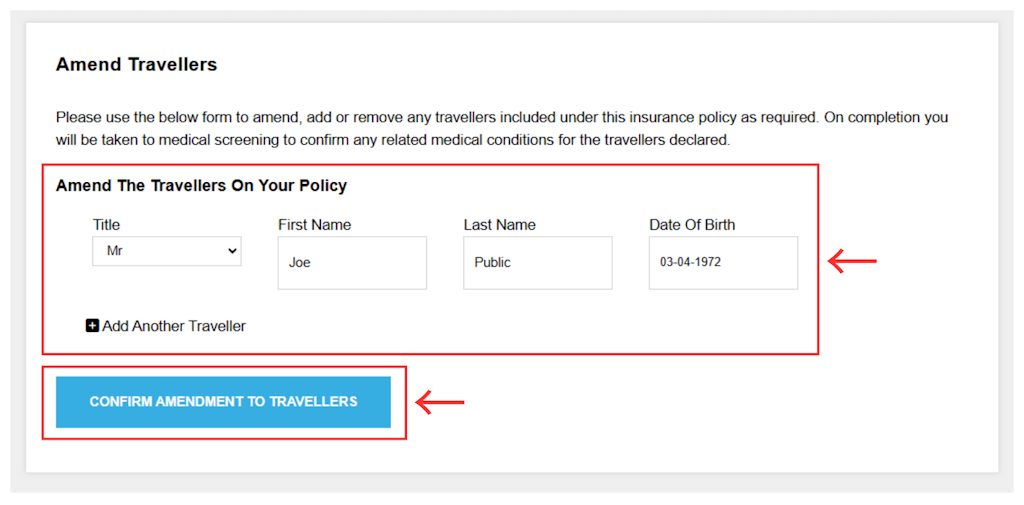
Once done, click Confirm Amendment to Travellers. The system will guide you to the medical screening process, where you will need to complete a declaration for each new traveller.
You can also take this opportunity to update the medical declaration for any existing travellers.
If there is an additional premium, you will be directed to a payment page to complete your amendment. We will not charge you an administration fee to amend your policy.
d) Change medical declaration(s)
The medical screening is one of the most important parts of your travel insurance - an incorrect declaration can result in cover being withdrawn, or claims being rejected or not fully paid.
Should you be concerned that your situation requires more detail or discussion, get in touch with us. You can email enquiries@brokersure.com or call 0330 880 3600.
Otherwise, you can make amendments to the medical declaration by clicking Update Medical Screening from the Policy Actions list.
The system will load the initial screening page with several Yes/No questions. Read through the questions carefully and answer them honestly and accurately. Click Continue Medical to proceed.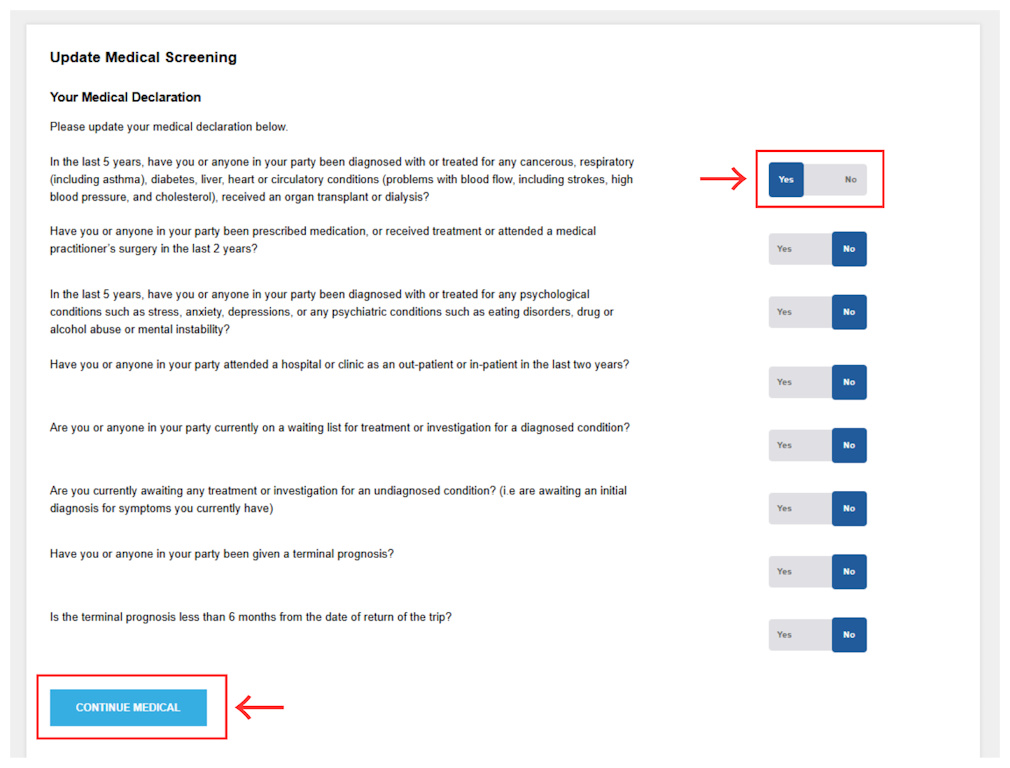
If you have answered No to any of the questions, the system will ask for confirmation and immediately save your details.
If you have answered Yes, you will be directed to the following page, where you need to declare specific conditions and answer further questions.
The travellers listed will have either Screen or Rescreen to their right, depending on whether you have recently added a traveller, or are changing a previous declaration.
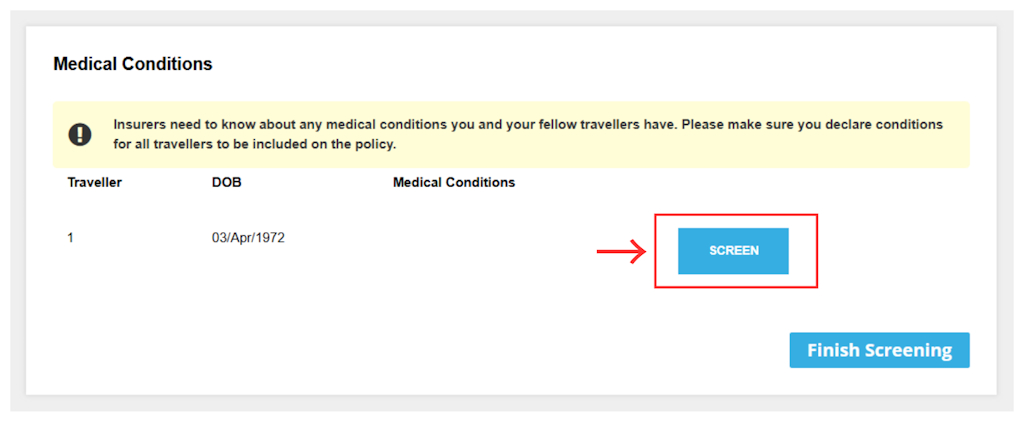
Click whichever option is next to the appropriate traveller and you will be asked to Search for a condition. Start typing the name of the medical condition and you will be presented with the available conditions to declare. Here, we are declaring High Cholesterol for Traveller 1:
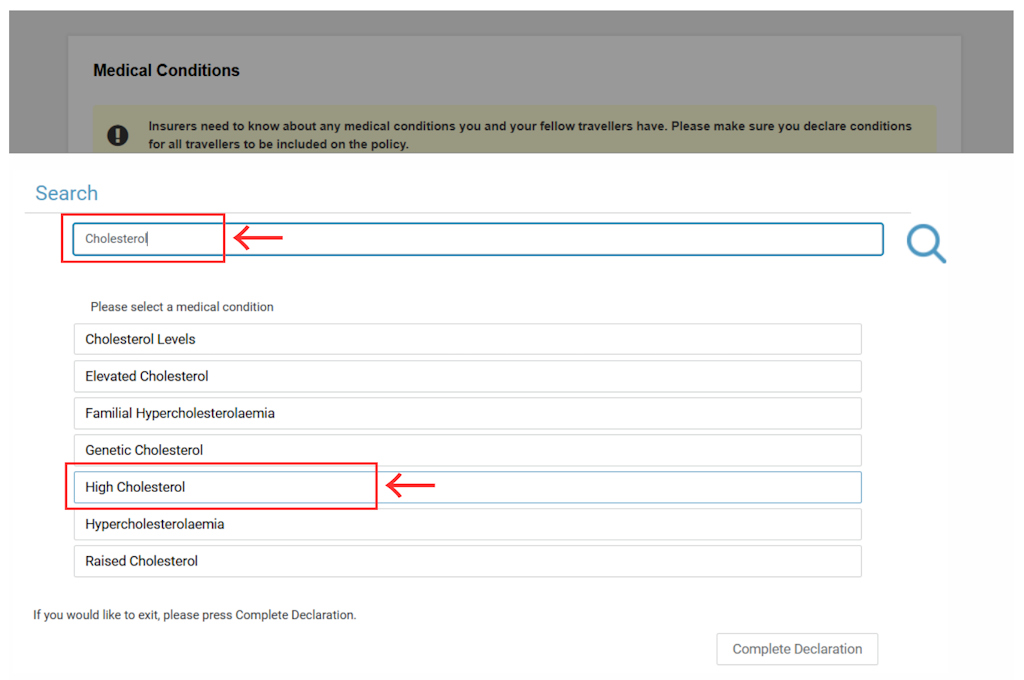
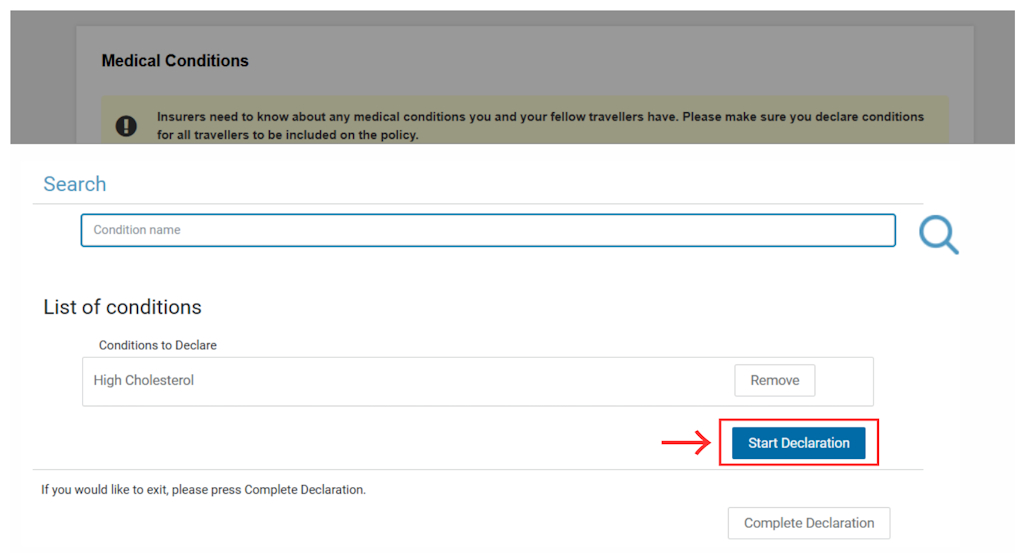
We would select High Cholesterol from the list, and select Start Declaration to begin answering the medical questions.
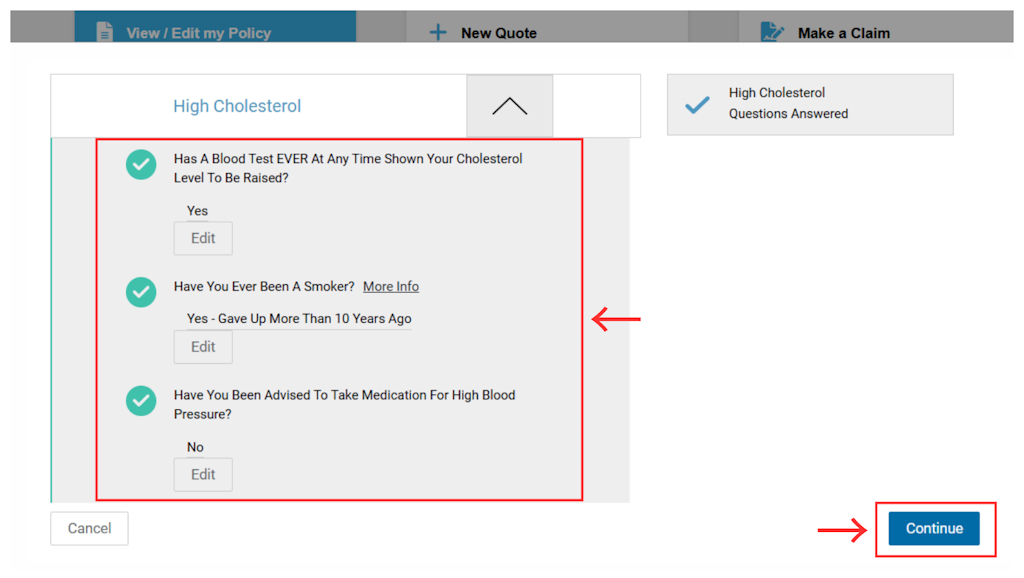
When there are no more questions to answer, double-check the information you have declared. When you are sure these are correct, click Continue.
If you need to declare another condition for the same traveller, search for the next condition in the Search bar. If not, click Complete Declaration on the right:
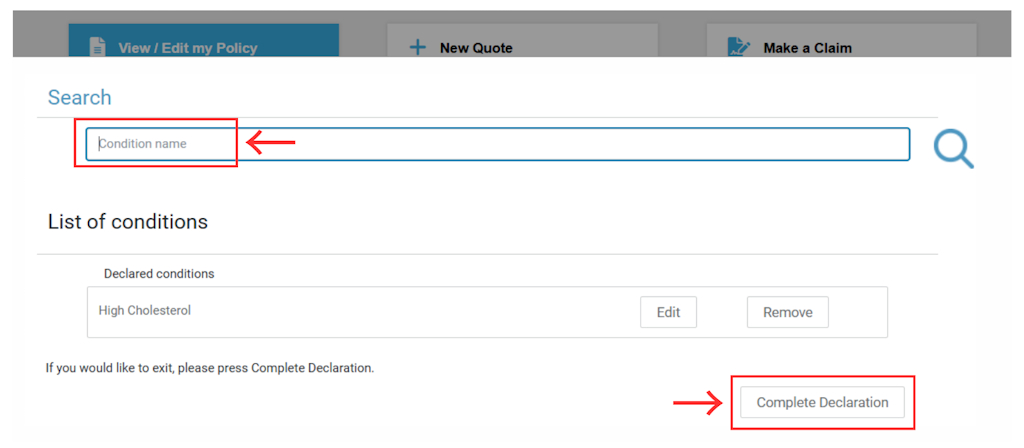
Once you have finished screening the traveller, you will be taken back to the list of all travellers. When you have completed all the amendments you need to make you can Finish Screening all travellers.
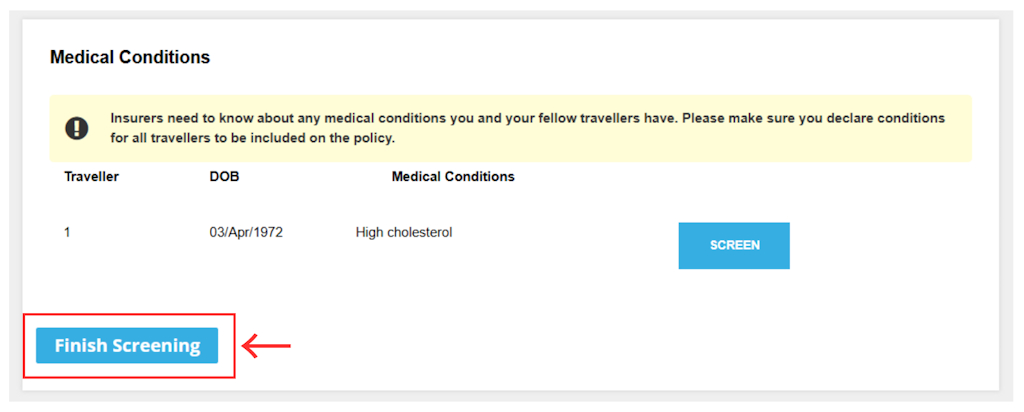
If there is no additional premium to pay, the system will simply confirm the change.
If further payment is required, you will be directed to a payment page for the additional policy premium. We will not charge you an administration fee to amend your policy.
Should you be due a refund, this will be handled internally, and we will return your funds in 5-10 working days.
e) Upgrade your existing policy
The Policy Actions list also gives you the option to Upgrade Your Policy before you travel. If you decide that you need more cover than previously realised, you can check the cover limits and read the Policy Wordings for higher levels here.
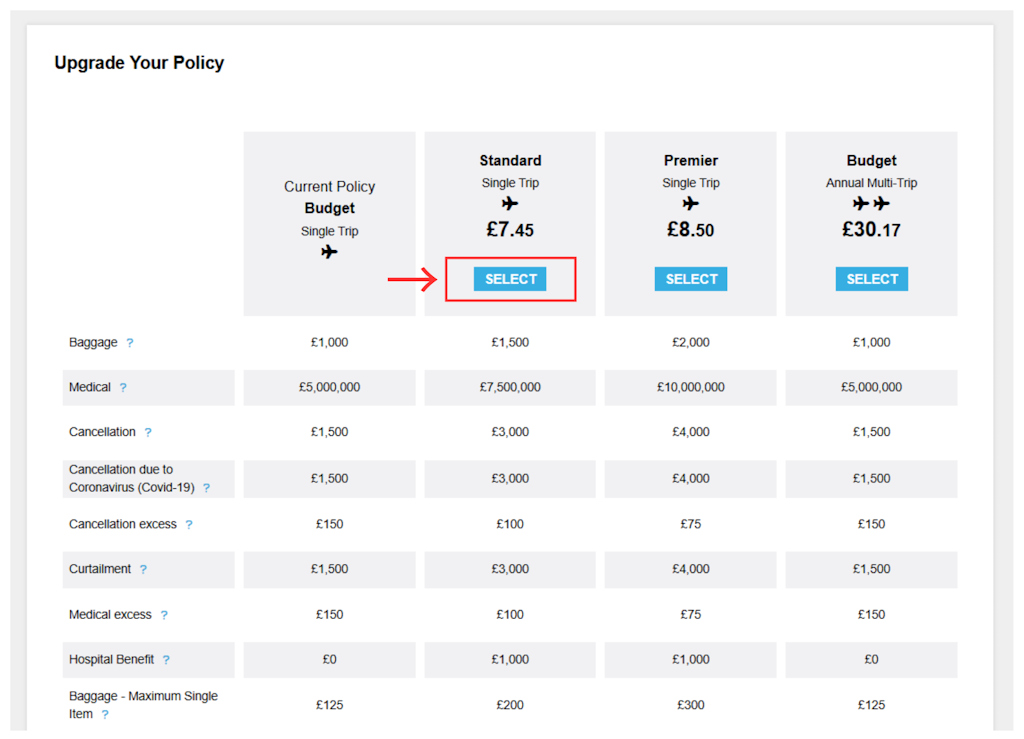
All you need to do is choose your upgrade option, click Select, and the system will ask for the additional premium to do so.
f) Change your activities and extensions
The Policy Actions list also gives you the option to Amend Activities.
By clicking on this, you can add extensions such as Cruise, Golf, and Winter Sports. You can also check whether sports or activities you intend to do abroad are covered under your policy, and add them to your policy if necessary.
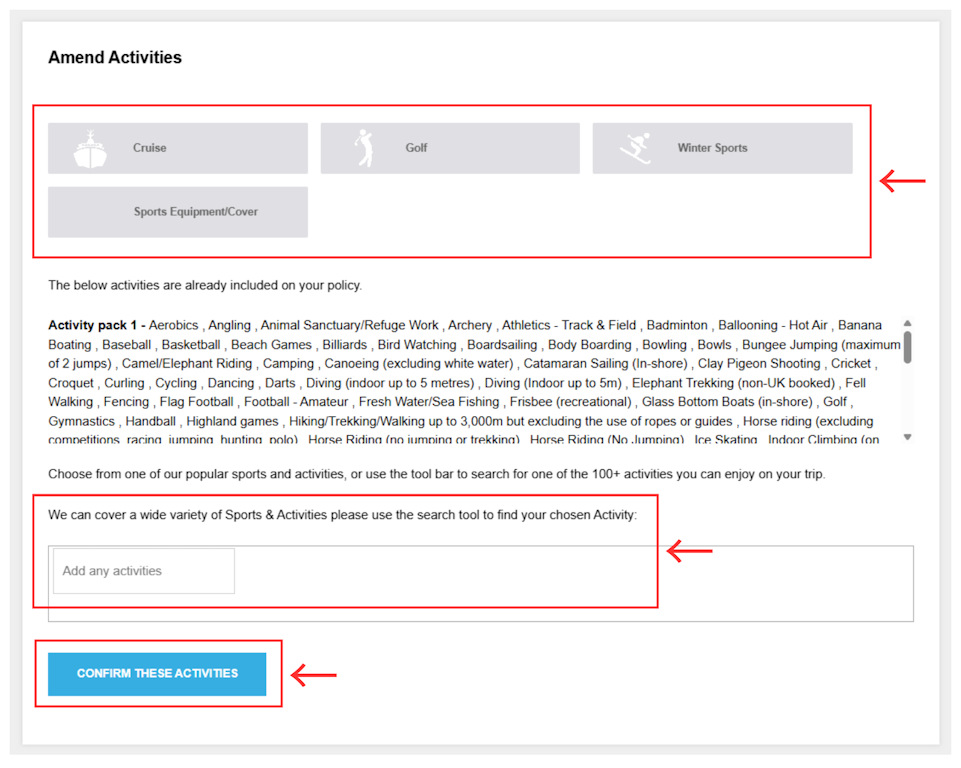
After you have made the changes you need to, please click Confirm These Activities.
If you add an activity or extension which requires you to pay an additional premium, you will be taken to the payment page.
5. How to make a claim
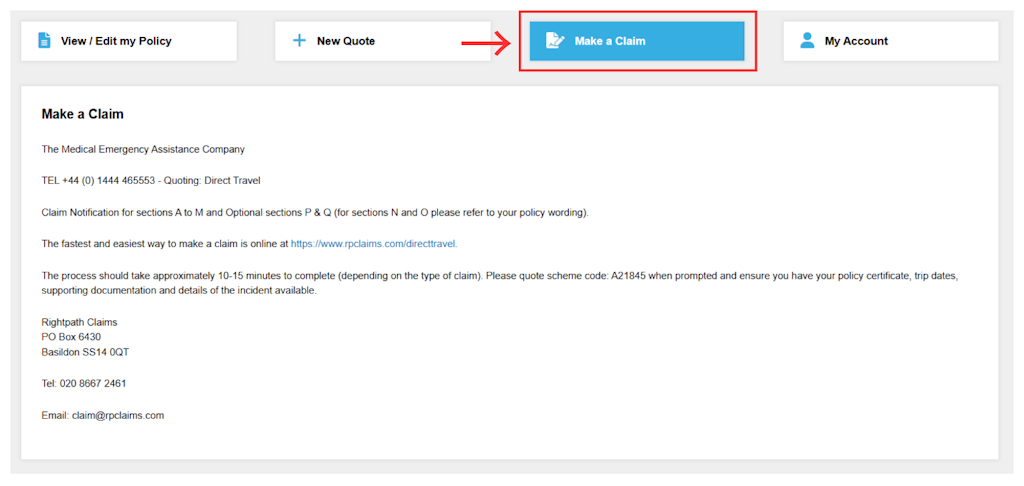
When you log into MyBrokerSure, you will see four boxes along the top of the page. Simply select the one which says Make a Claim, and you'll be presented with the Claims team information for your most recent policy.
Please note the below details are an example only:
6. Contact us
If you would like to talk to a member of our customer care team, here’s how you can get in touch:
Call 0330 880 3600
Email enquiries@brokersure.com
Write to
Direct Travel Insurance
Digital House
Threshelfords Business Park
Inworth Road
Feering
Essex
CO5 9SE